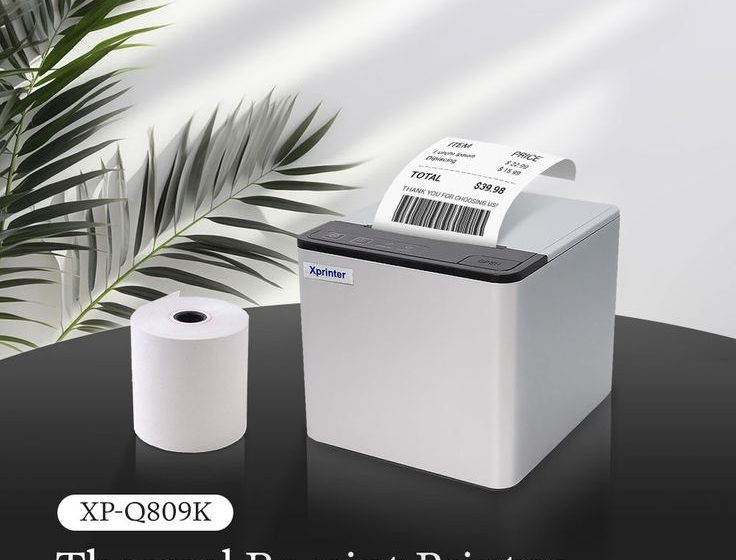

Installing a receipt printer may seem like a simple task, but several factors can affect its performance and compatibility. Businesses should evaluate their workspace, POS system, connectivity, paper requirements, and power setup before placing a new printer into daily operation.
An 80mm Thermal Printer can be a practical solution for retail stores, restaurants, cafés, and other businesses that regularly print receipts. However, checking the installation requirements in advance can help prevent connectivity problems, paper-feeding issues, and unnecessary interruptions.
Check the Available Counter Space
The first step is to determine where the printer will be installed. Checkout counters often contain several devices, including POS terminals, cash drawers, barcode scanners, and payment equipment.
Measure the available space and compare it with the printer’s dimensions. Leave enough room around the unit for ventilation, cable connections, paper replacement, and routine maintenance.
The paper roll should also be accessible so employees can replace it quickly when necessary.
Confirm POS System Compatibility
A thermal printer needs to communicate properly with the POS system that sends it printing instructions. Before installation, confirm that the printer is compatible with the software and hardware currently used by the business.
Check factors such as:
- Supported operating systems
- POS software compatibility
- Available printer drivers
- Supported printing protocols
- Required connection interfaces
Confirming these details before installation can prevent avoidable configuration problems.
Choose the Appropriate Connectivity
The printer’s connection method should match the business’s existing setup. Common options include USB, Ethernet, Bluetooth, and Wi-Fi, depending on the model.
USB can be suitable for a direct connection to a single POS terminal. Ethernet may work better for networked environments with multiple workstations, while Bluetooth can be useful for compatible mobile POS systems.
Businesses should decide where the printer will be located and how many devices need to communicate with it before choosing the connection method.
Check the Power Requirements
Before installation, verify the printer’s power requirements and ensure that an appropriate electrical outlet is available nearby.
Avoid placing power cables where employees or customers could trip over them. In busy checkout areas, cables should be organized so they do not interfere with normal operations.
If the business uses backup power equipment, such as an uninterruptible power supply, confirm that the printer can be safely connected to the selected system.
Use the Correct Thermal Paper
An 80mm thermal printer requires compatible thermal paper designed for its specifications. Using the wrong paper size can result in feeding problems, poor print quality, or inefficient operation.
Check the printer’s recommended paper width, roll diameter, and other paper specifications before purchasing supplies. It is also useful to keep spare rolls available so employees can replace an empty roll without interrupting customer service.
Thermal paper should be stored in suitable conditions and protected from excessive heat, moisture, and prolonged exposure to direct light.
Review Paper Loading and Cutter Operation
Employees should know how to install a new paper roll correctly before the printer goes into regular use. Incorrect paper placement can prevent printing or cause paper jams.
If the printer includes an automatic cutter, test its operation during installation. The cutter should separate receipts cleanly without damaging the remaining paper roll.
Training employees on basic paper replacement can reduce delays during busy periods.
Install the Necessary Drivers and Software
Some printers require specific drivers or configuration utilities before they can communicate with the POS system. Download or install the appropriate software according to the manufacturer’s instructions.
After installation, check that the POS system recognizes the printer correctly. If multiple printers are connected, give each device a clear identification name to make configuration easier.
Keeping drivers and printer software appropriately updated can also help maintain compatibility.
Perform a Test Print
A test print should be completed before the printer is used for real customer transactions. This simple step can identify problems before they affect normal business operations.
Check the test receipt for:
- Clear and consistent text
- Correct paper alignment
- Proper logos or graphics
- Readable barcodes when applicable
- Correct receipt formatting
- Successful paper cutting
If anything appears incorrect, resolve the issue before moving the printer into regular service.
Consider Network Configuration
For Ethernet or Wi-Fi models, network configuration is an additional installation consideration. The printer may need to be assigned an appropriate network address and made accessible to the required POS terminals.
Businesses should ensure that network settings do not conflict with existing equipment. If the printer is shared across multiple workstations, verify that each authorized terminal can communicate with it successfully.
Network-connected equipment should also be configured with appropriate security controls.
Plan for Routine Maintenance
Installation is only the beginning of maintaining reliable printing performance. Businesses should establish basic procedures for cleaning the printer, checking the paper path, and inspecting components.
The thermal printhead and platen roller can accumulate dust or residue over time, particularly in busy environments. Following the manufacturer’s recommended cleaning methods can help preserve print quality.
Staff should also know how to respond to common issues such as paper jams, empty rolls, and faded printing.
Train Employees Before Going Live
Even a properly configured printer can cause delays if employees are unfamiliar with its operation. Provide basic training before the printer is introduced into everyday transactions.
Employees should know how to:
- Load and replace thermal paper
- Identify common error indicators
- Clear simple paper-feed problems
- Perform basic cleaning when appropriate
- Check connection status
- Contact technical support when necessary
Clear procedures can reduce unnecessary downtime and make troubleshooting more efficient.
Keep Important Information Accessible
Record the printer model, installation details, driver information, and support contacts after setup. This information can be useful when troubleshooting or replacing components.
It is also helpful to keep a copy of relevant user documentation and maintenance instructions where authorized staff can access them.
Good documentation can save time if the printer needs to be reconfigured or moved to another workstation.
Final Installation Checklist
Before putting the printer into regular operation, confirm that:
- The printer fits securely in the selected location.
- Power and data cables are safely positioned.
- The correct thermal paper is available.
- The POS system recognizes the printer.
- Required drivers are installed.
- Network settings are configured when necessary.
- A successful test receipt has been printed.
- The automatic cutter works correctly, if included.
- Employees understand basic operation and troubleshooting.
- Maintenance procedures are established.
Conclusion
Installing an 80mm thermal printer involves more than connecting a cable and loading a paper roll. Businesses should check physical space, POS compatibility, connectivity, power requirements, paper specifications, software configuration, and maintenance procedures before beginning regular use.
Taking time to complete these checks can reduce installation problems and help the printer operate reliably from the start. A well-planned setup also makes it easier for employees to handle everyday printing tasks and maintain an efficient checkout environment.