
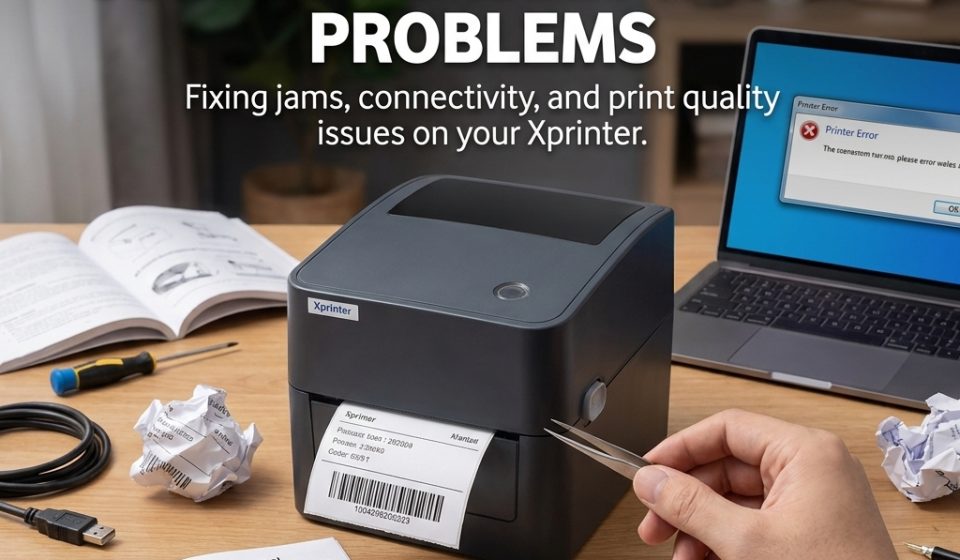

A printer that suddenly stops feeding labels, produces faded text, or prints everything out of alignment can disrupt an otherwise simple workflow. Many common problems have straightforward causes, so checking the basics first often saves time.
A label printer relies on several components working together, including the printhead, rollers, sensors, media, software, and connection. When one part has an issue, the symptoms can range from blank labels to repeated paper jams or incorrect positioning.
Start With the Basic Checks
Before troubleshooting a specific problem, check the printer’s basic operating conditions. Make sure the power cable remains connected and the device shows no error indicators.
Also check whether the label roll sits correctly in the media compartment. Incorrect loading can cause several problems that initially look like hardware failures.
If the printer recently worked correctly, think about what changed. A new label size, software update, connection, or media roll may help identify the cause.
Labels Are Not Feeding Correctly
Media feeding problems often result from incorrect loading or unsuitable label material.
Open the printer and check that the roll sits in the correct position. Make sure the labels pass through the intended guides without excessive pressure.
Also inspect the media path for scraps of labels, dust, or adhesive residue. Remove visible debris according to the manufacturer’s cleaning instructions.
If the problem continues, check whether the label dimensions match the printer’s supported media specifications.
Labels Print in the Wrong Position
Misaligned printing can make labels unusable even when the text itself looks clear. The problem often relates to incorrect label dimensions or calibration.
Check the width and height settings in your label software. They should match the physical label dimensions.
You may also need to calibrate the printer after changing label types. Calibration allows the device to detect the beginning and end of each label correctly.
The Printer Skips Labels
When a printer advances several labels or leaves blank labels between print jobs, the media sensor may not detect the label gaps correctly.
Start by checking whether you selected the correct media type in the printer settings. Then inspect how the labels pass over the sensor.
Run the printer’s calibration procedure if your model supports one. If the issue remains, consult the manufacturer’s troubleshooting instructions for the sensor and supported media.
Prints Look Faded
Faded printing can result from several factors, including unsuitable print settings, a dirty printhead, or inappropriate media.
For thermal printers, check the print density or darkness setting. Increasing it slightly may improve output, although excessive heat can shorten printhead life.
Clean the printhead using the manufacturer’s recommended method. Also verify that the label material suits the printer’s printing technology.
Parts of the Print Are Missing
White lines or missing sections can indicate contamination or damage around the printhead.
Inspect the printed output carefully. If the missing area appears consistently in the same location, a dirty or damaged section of the printhead may cause the problem.
Clean the printhead first if the manufacturer’s instructions allow it. Persistent missing areas may require professional inspection or printhead replacement.
Barcodes Will Not Scan
A barcode may look acceptable to the eye but still fail when scanned. Several factors can affect readability.
Check the barcode size, print density, resolution, contrast, and surrounding blank space. Very small barcodes may not provide enough detail for reliable scanning.
Make sure the label material and printing method suit the application. Print a test batch and scan several labels rather than checking only one.
Labels Keep Getting Stuck
Frequent jams may result from incorrect media loading, adhesive buildup, damaged labels, or unsuitable media.
Remove the roll and inspect it for folded edges, damaged sections, or labels that have started separating from the backing.
Clean accessible parts of the media path if residue has accumulated. Avoid pulling stuck labels aggressively because excessive force can damage internal components.
The Printer Does Not Respond
When the device receives no print job, check the connection before assuming a hardware problem.
For USB connections, make sure the cable remains secure and try another compatible port if available. For Wi-Fi or Ethernet connections, verify that the printer remains connected to the correct network.
Also check your computer’s printer settings. The correct device may not appear as the default printer, or a paused print queue may prevent new jobs from processing.
The Printer Prints Blank Labels
Blank output can have different causes depending on the printing technology.
A direct thermal printer requires heat-sensitive media. If you use ordinary paper or incompatible labels, the printer may feed the media without creating a visible image.
For thermal transfer printing, check that the ribbon loads correctly and that its printable side faces the label material. Also verify the print settings and media configuration.
Printing Is Too Slow
A printer may operate below its advertised maximum speed for several reasons. High-resolution designs, large labels, dense graphics, and complex print jobs can all require additional processing.
Check whether the selected print resolution exceeds what your application needs. You can also simplify complicated label designs when speed matters more than detailed graphics.
A busy network or large print queue can also create delays, particularly when several users share the same printer.
Software Cannot Find the Printer
When label software does not recognize the device, check whether the operating system detects it first.
If the computer does not recognize the printer, investigate the physical or network connection. If the operating system sees it but the label software does not, check the selected printer and driver settings within the application.
Installing the correct driver for the exact printer model may resolve compatibility problems.
When Should You Contact a Technician?
Basic troubleshooting can resolve many printing problems, but some issues require professional attention.
Seek qualified service when you notice persistent mechanical failures, damaged internal components, electrical problems, repeated printhead failures, or issues that remain after following the manufacturer’s troubleshooting procedures.
Avoid opening or repairing internal components unless you have the appropriate instructions and technical knowledge.
How to Prevent Common Problems
Regular maintenance can reduce the frequency of printing problems. Keep the printer clean, use compatible media, and follow the manufacturer’s maintenance schedule.
It also helps to keep label rolls stored in suitable conditions. Excessive heat, moisture, dust, or physical damage can affect media performance.
Check printer settings whenever you change label sizes or materials. A few seconds spent confirming the configuration can prevent wasted labels and repeated print jobs.
Final Thoughts
Most common printing problems come from a small number of areas, including media loading, calibration, printhead condition, software settings, and connectivity. Checking these areas systematically can often identify the cause without complicated repairs.
Start with simple solutions and change one setting at a time. If the problem continues after basic troubleshooting, use the manufacturer’s documentation or seek professional service rather than risking damage to the printer.


